Channel Groups
Channel Grouping in Astra helps you organize and manage your media content. By using categories and groups, you can make channel packages to fit each customer’s subscription plan. Also, it makes arranging channels on your dashboard easier for better management.
To access and configure group settings, navigate to Settings → Groups in your Astra Web Interface.
Categories
Section titled “Categories”Categories in Astra serve as the top level in the channel grouping hierarchy. They are broad classifications that help you organize your content on a large scale. For example, you can use a “Genre” category to divide channels into various genres such as movies, sports, or travel.

- Category: select an existing category or create a new one
- Name: category name
Groups
Section titled “Groups”Groups in Astra act as sub-categories within the larger categories. These are more specific classifications that help further sort your channels. Each group contains channels related to its specific theme. When you select a category in the Astra Dashboard settings, all channels within that category are automatically grouped by these Groups, for enhanced organization and easier management.

- Add group: add a new group to the category
- Guide Arrows: located on the right side of each field allows to change group position or remove Group
If you want to remove a category and all its related groups, simply select the Remove category checkbox and click “Apply” button. It’s important to remember that this action only deletes the category and groups, not the channels within them. Also note, once done, this action cannot be undone.
Streams
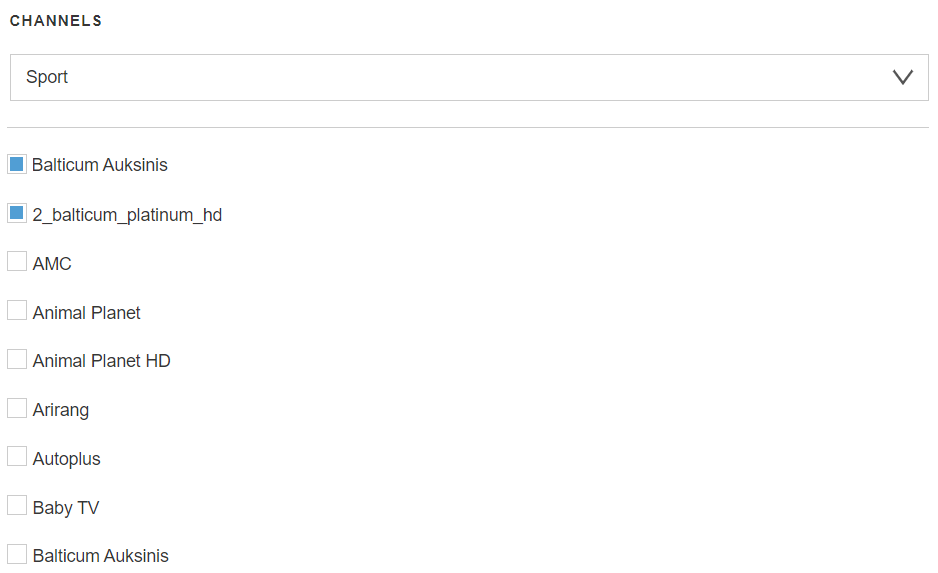
Section titled “Streams”The “Streams” button opens a list of all channels available in the Astra. In this form, you can add channels and streams to groups or remove them from groups.