Integration Astra with Zabbix
Zabbix is an open-source platform for monitoring network services, servers, and applications. It can be integrated with Astra to monitor Streams and DVB Adapters.
Zabbix Server installation
Section titled “Zabbix Server installation”Zabbix can be installed both on a dedicated server and on an Astra server
- Go to https://www.zabbix.com/download
- Select Zabbix version
- Select your OS
- Follow the installation instructions
You can find detailed information on Zabbix Manuals
Zabbix Agent installation
Section titled “Zabbix Agent installation”Install Zabbix Agent on the server with Astra.
- Go to https://www.zabbix.com/download_agents
- Select your OS
- Follow the installation instructions
You can find detailed information on Zabbix Agent Manuals
Zabbix Agent configuration
Section titled “Zabbix Agent configuration”First of all Zabbix Agent should be configured to allow incoming connections from the Zabbix Server. Open the Agent configuration file located in /etc/zabbix/zabbix_agentd.conf with your favorite editor.
- Find the
Server=option and set the IP address or hostname of the server with Zabbix Server; - Find the
UnsafeUserParameters=option or append new and set value to1.
Save file.
Zabbix Agent receives all information from Astra with scripts writed on Python. Make sure that on your server installed Python3:
sudo apt install python3 python3-pipfor RPM-based system use yum instead of apt. Next install necessary library for Python:
pip3 install requestsDownload scripts for Zabbix Agent:
curl https://cdn.cesbo.com/astra/zabbix/agent.tar.gz | tar -zxC /optScripts will be saved to the /opt/zabbix_agent directory. Download service configuration file for Zabbix Agent:
curl -o /etc/zabbix/zabbix_agentd.d/astra.conf https://cdn.cesbo.com/astra/zabbix/astra.confAnd finally restart Zabbix Agent:
systemctl restart zabbix-agentInstall Zabbix Template for Astra
Section titled “Install Zabbix Template for Astra”Download the Template to your computer and import this file to Zabbix:
In Zabbix web interface open Configuration → Templates, then click the Import button in the upper right corner. Click Browse and select the template file, then click Import button. After successful import, you will see a green message Imported successfully
Configure Template
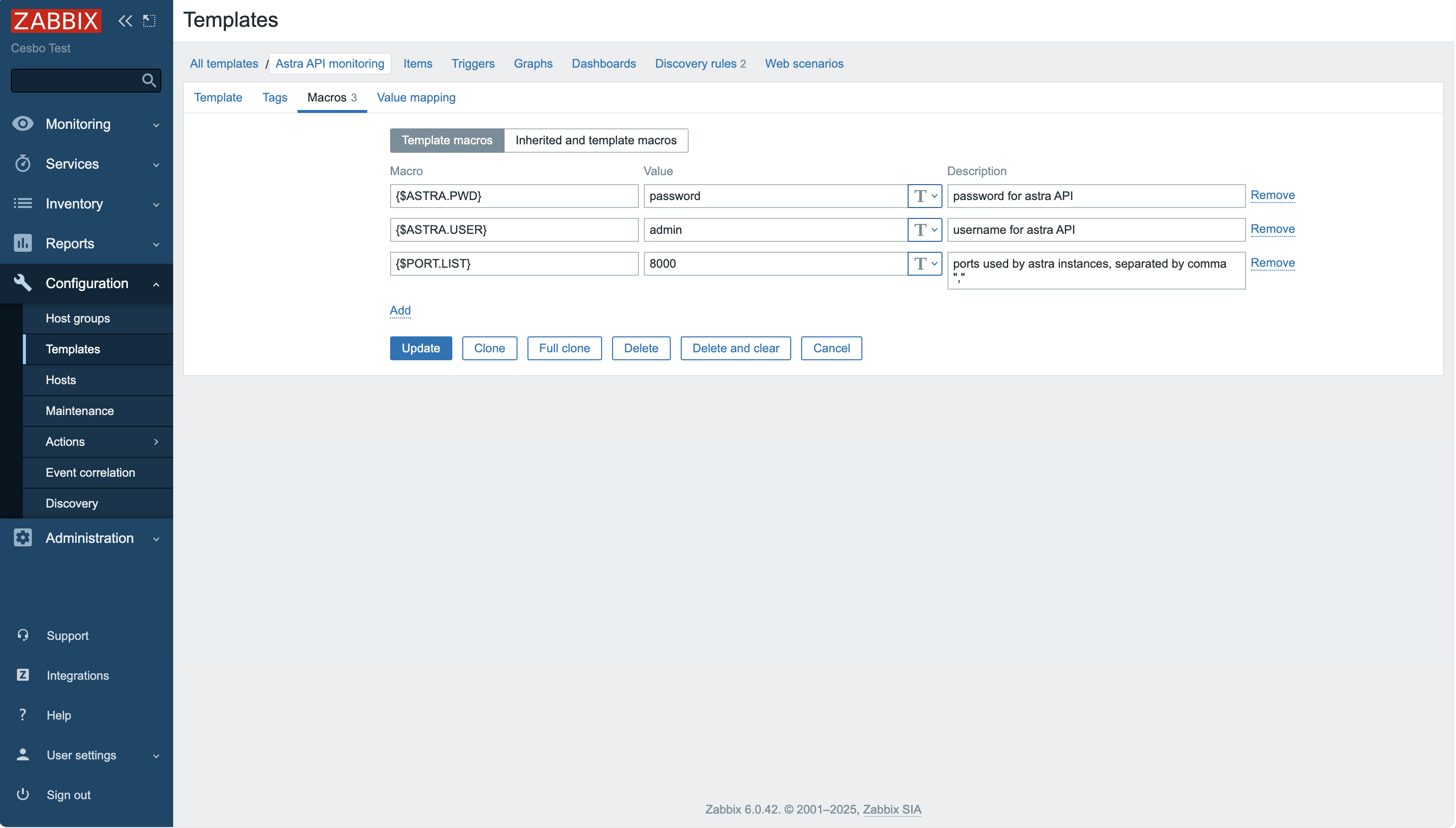
Section titled “Configure Template”In Zabbix web interface open Configuration → Templates, then select Astra API monitoring and open the Macros tab. Fill next values:
- First line, set administrator password to Astra web interface
- Second line, set administrator username to Astra web interface
- The last line, the port of the Astra web interface. If you have multiple processes, specify all ports separated by commas. For example:
8000,8001,8002
Click Update button to apply changes
Connect Zabbix to Astra
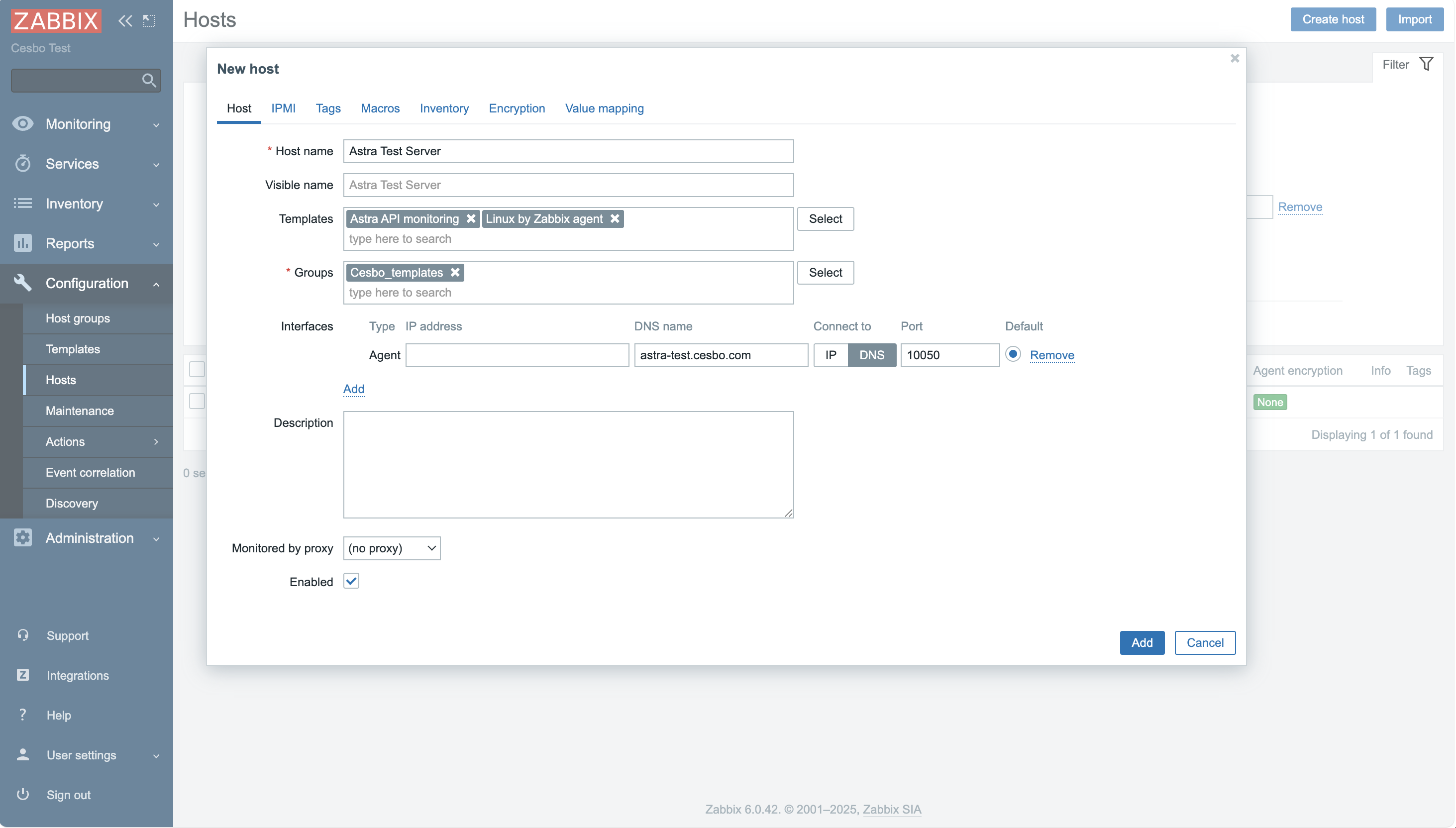
Section titled “Connect Zabbix to Astra”In Zabbix web interface open Configuration → Hosts and click Create host in the top right corner. Fill following fields:
- Host name: any name of the server where Astra is installed, for example: Astra
- Templates: select Astra API monitoring and optionally Linux by Zabbix agent to monitor general system state
- Groups: select Cesbo_templates or create a new group
- Interfaces: click Add, select Agent, and specify the IP address or hostname of the server where Astra and Zabbix Agent are running. Port should be
10050by default
Save changes.
Viewing Graphs
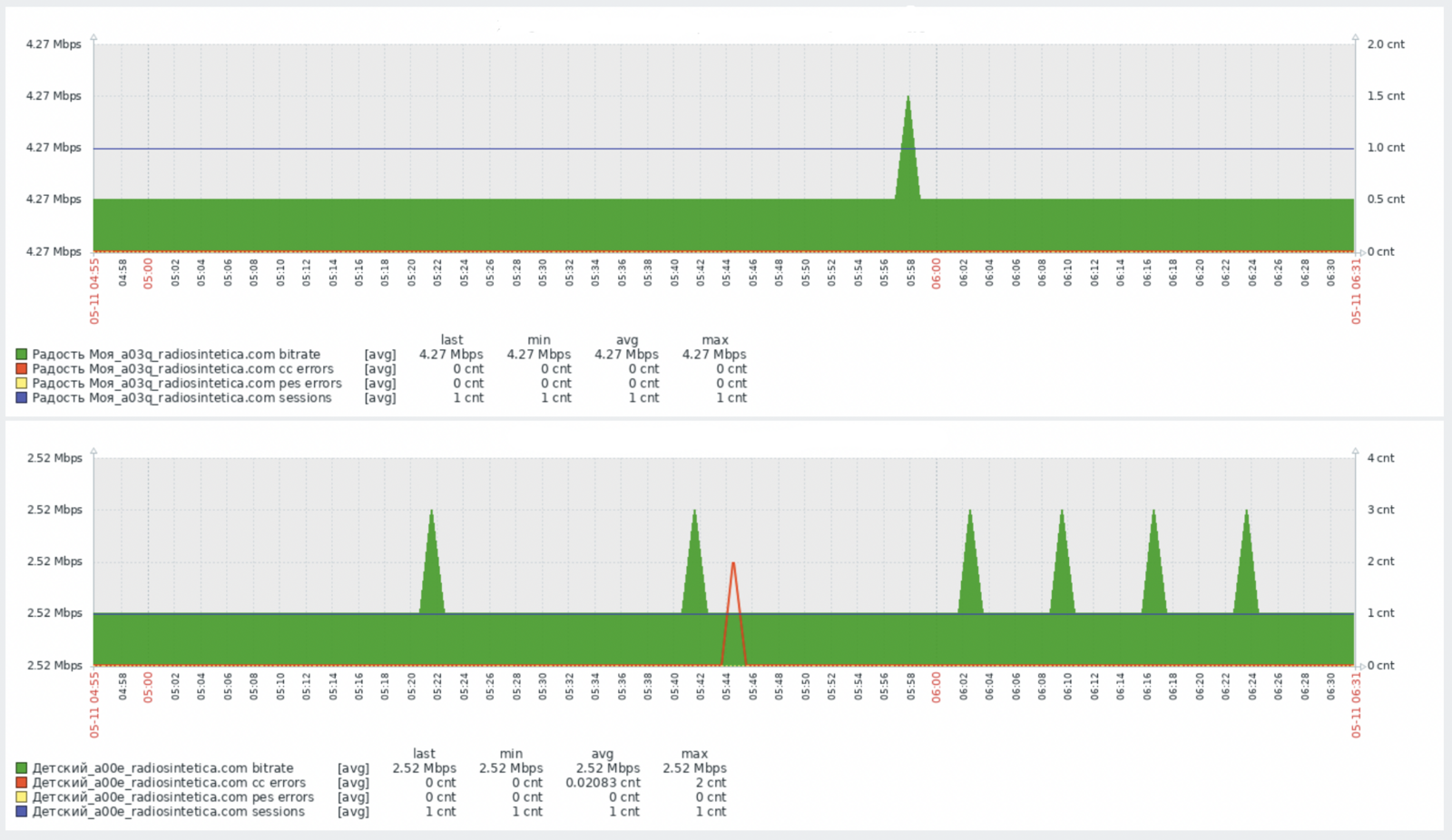
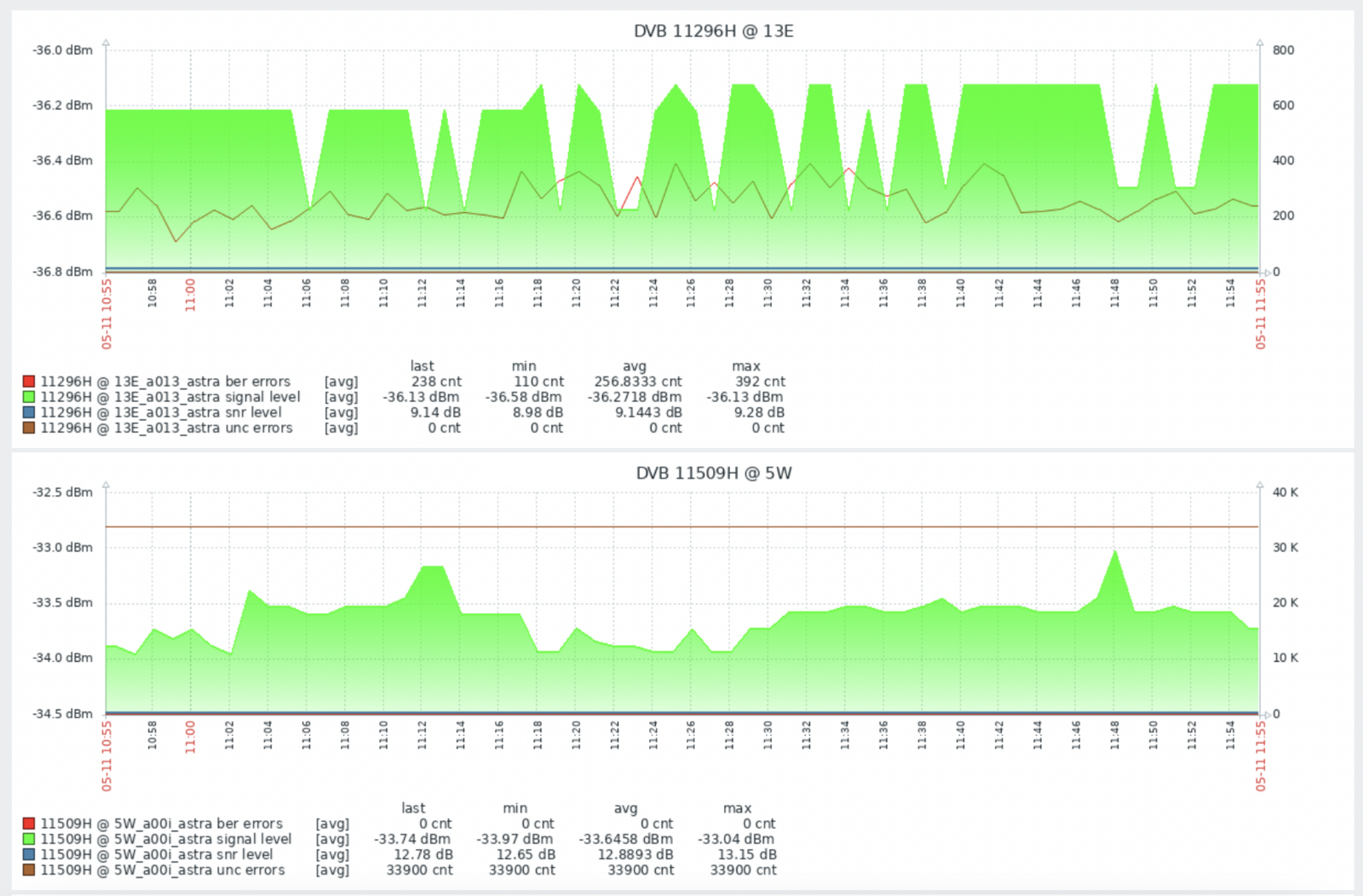
Section titled “Viewing Graphs”After about 10 minutes, graphs will appear showing channel and adapter status. To view them:
- In Zabbix web interface, open Monitoring → Hosts
- Find your Astra host in the list
- Click Graphs in the host row to see available monitoring graphs
- Select a graph to view detailed statistics
Alternatively, you can view data in Monitoring → Latest data to see current values and short-term history for all monitored items.
Graphs Examples
Section titled “Graphs Examples”